

Tracking subscriptions
A comprehensive guide on tracking your paid subscriptions using Ducat.
Subscriptions have become a regular part of everyone's expenses, and they should coexist with one-time purchases for a holistic view of your financial health.
Ducat makes this seamless through easy tracking, timely renewal reminders and showing you how much you have been, and is still spending on subscriptions.
Adding a subscription
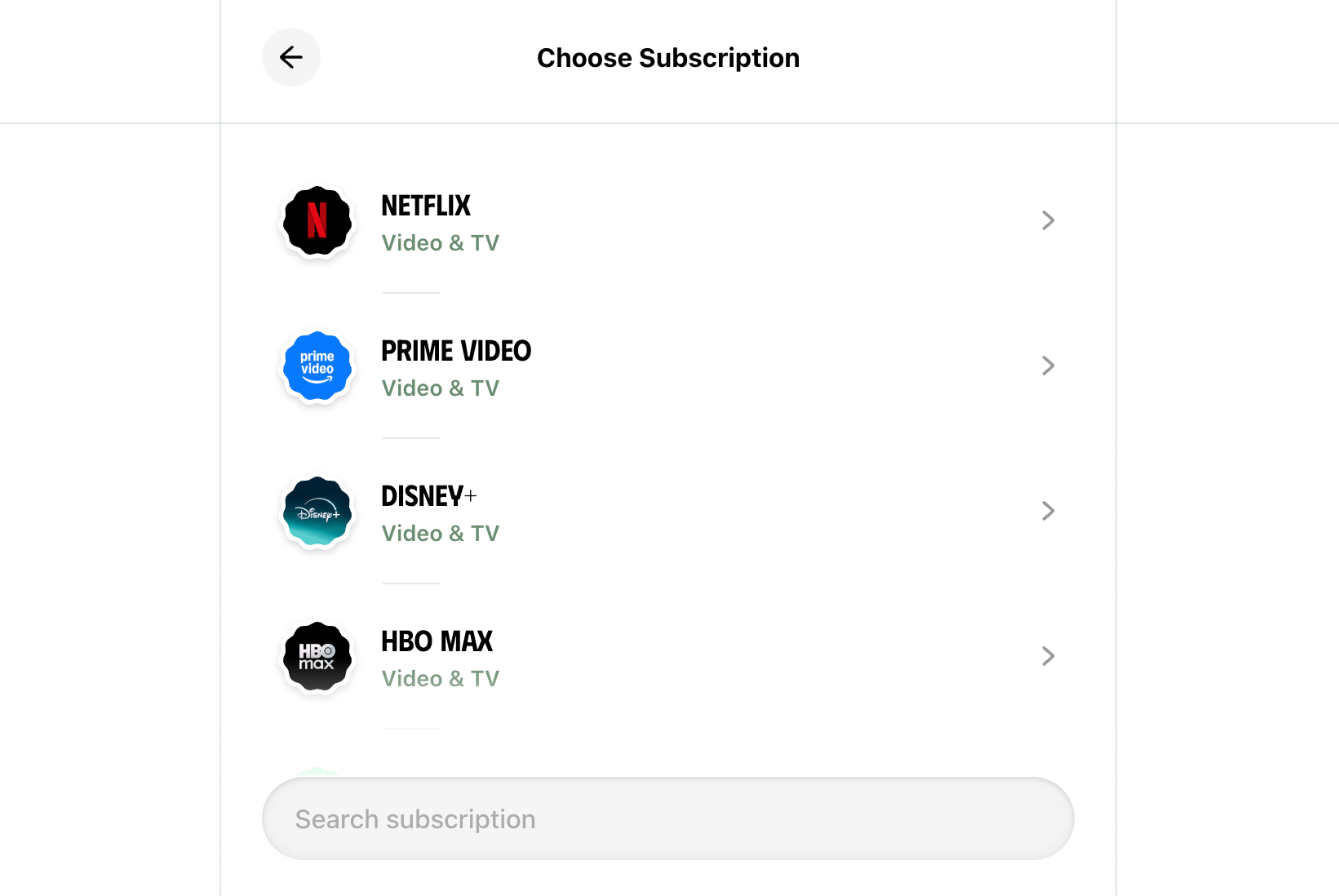
On the Subscriptions page, click the + button to see a list of subscription suggestions to choose from:

Pick a subscription from this list or if your subscription isn't on the suggested list, type its name in the search box to see an option to add a custom subscription:
On the next page, enter your subscription cost, choose the billing frequency and review other details:
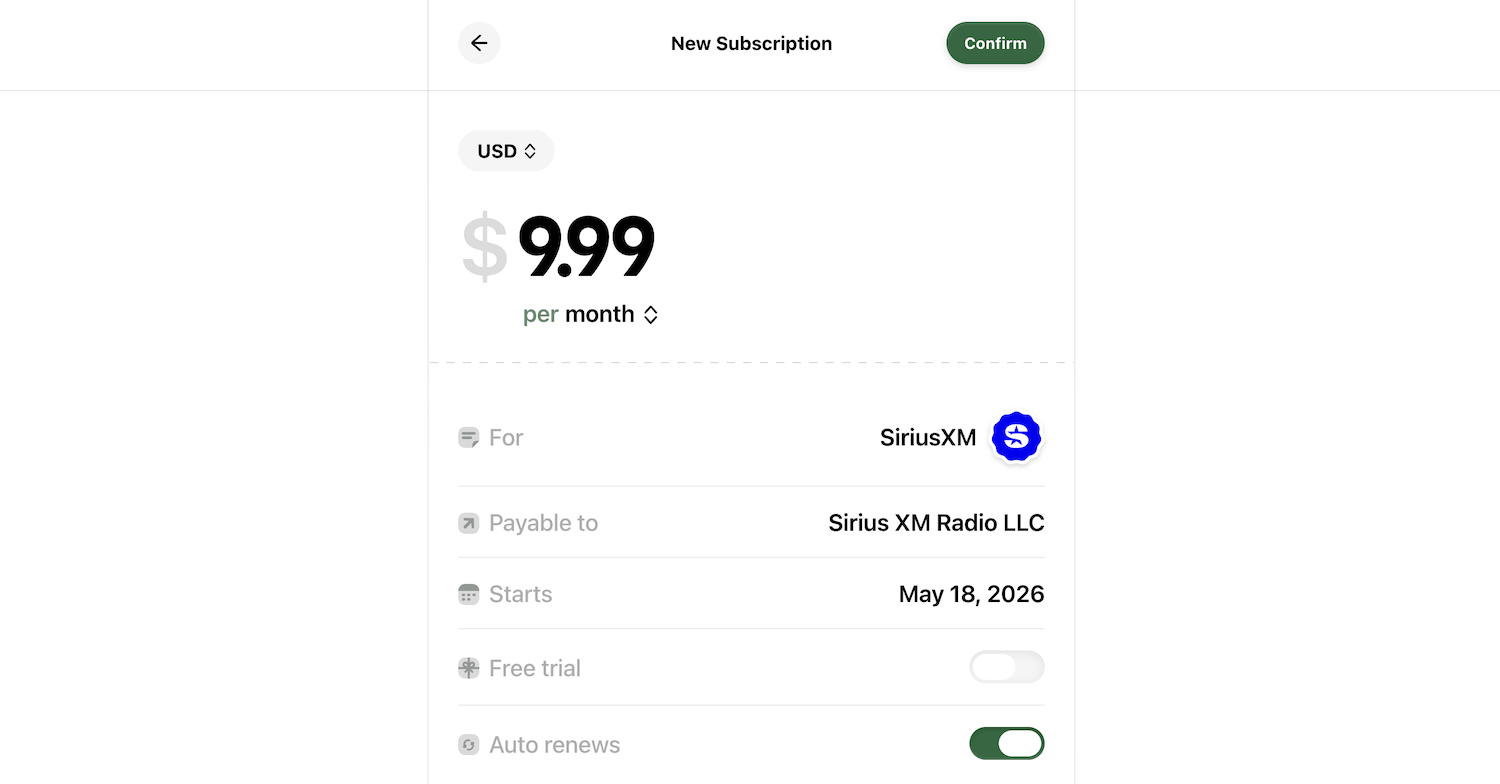
For existing subscriptions, choose the start date as the date you first subscribed to this service or app.
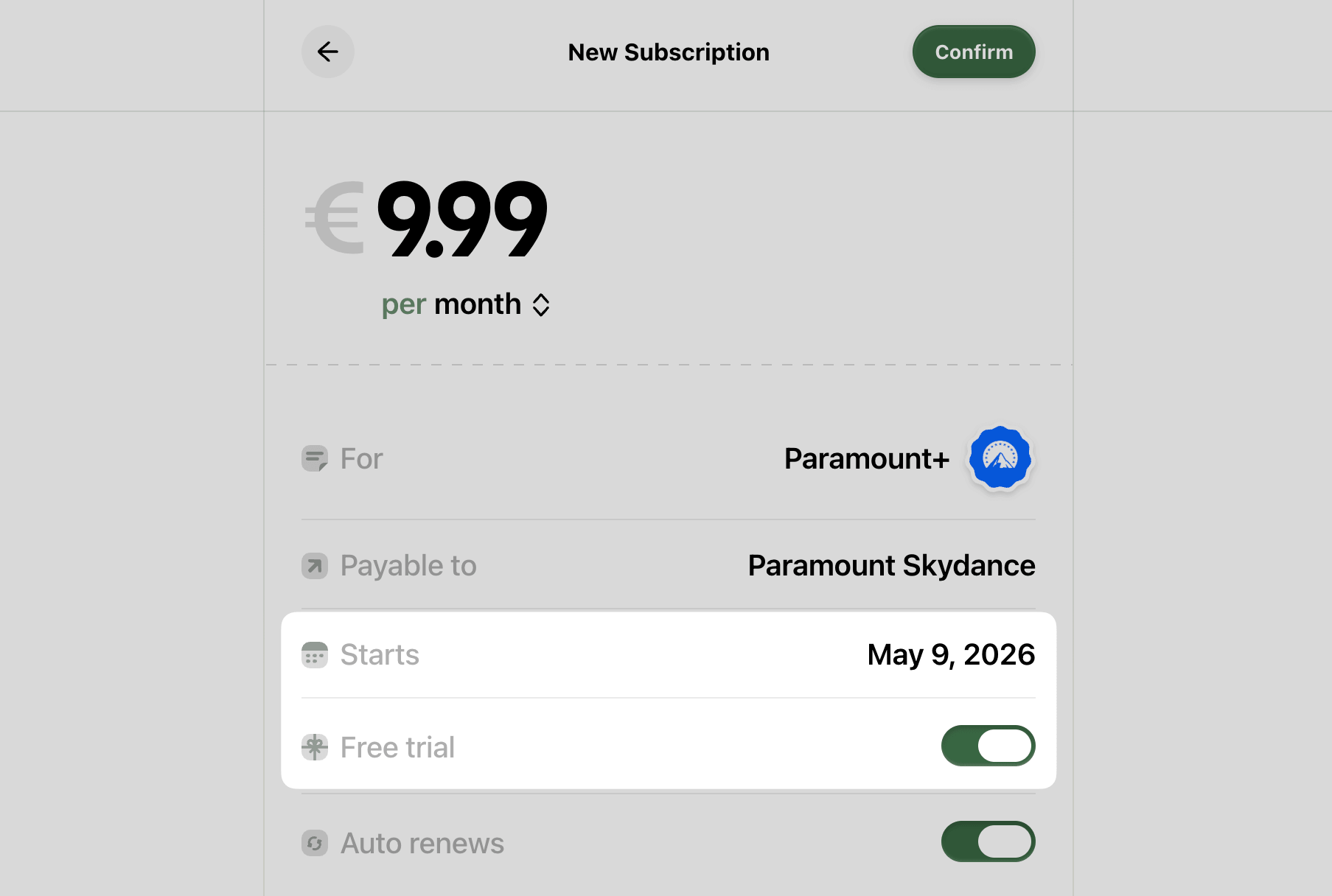
If your subscription charge hasn't begun yet, and it offers a free trial, you can choose the start date as the date when you'll be first charged for this subscription and toggle on the Free trial option to receive a trial end reminder 2 days before your first charge:
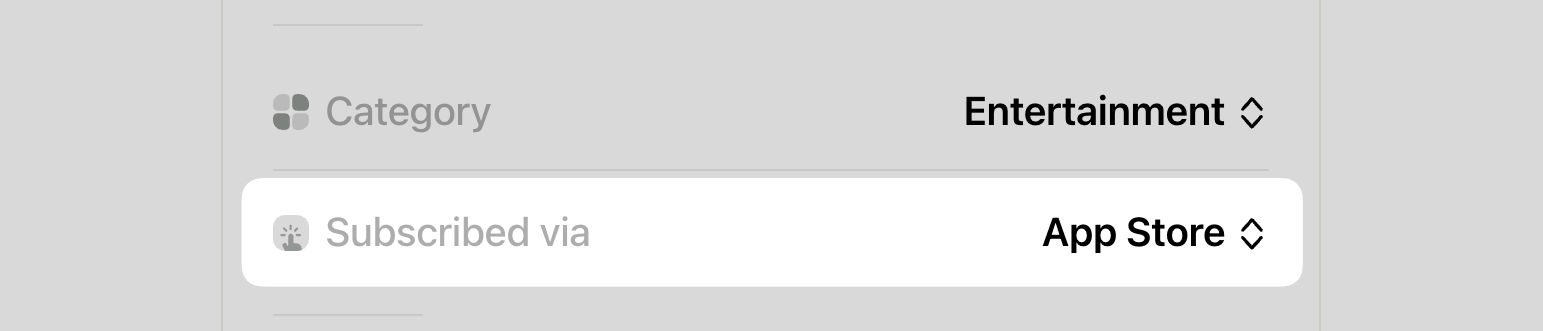
Ensure you select the correct charge source for your subscription in the Subscribed via field as this will help you remember where you subscribed to this service in case you want to cancel it later:
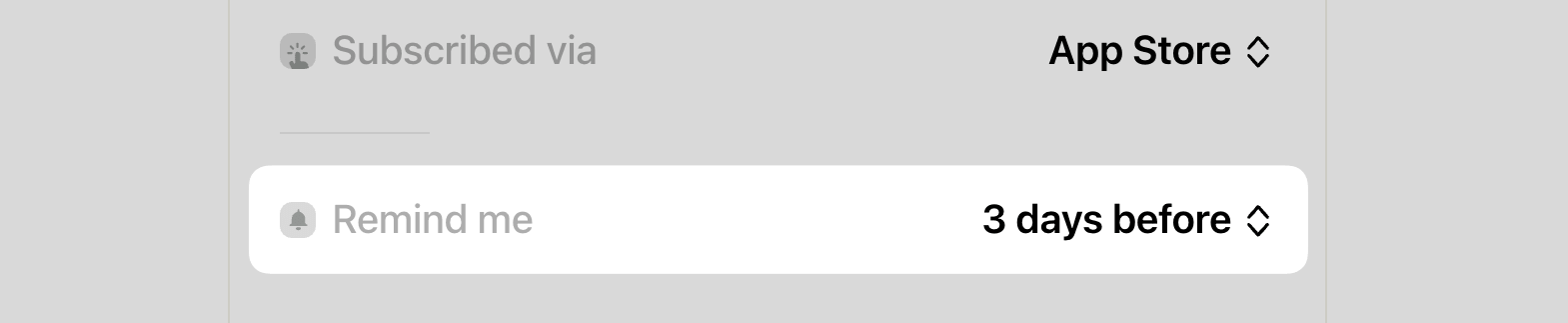
Finally, choose when you'd like to be reminded of this subscription's renewal:
Then, click the Confirm button to add the subscription to your tracked subscriptions list.
Reviewing subscriptions
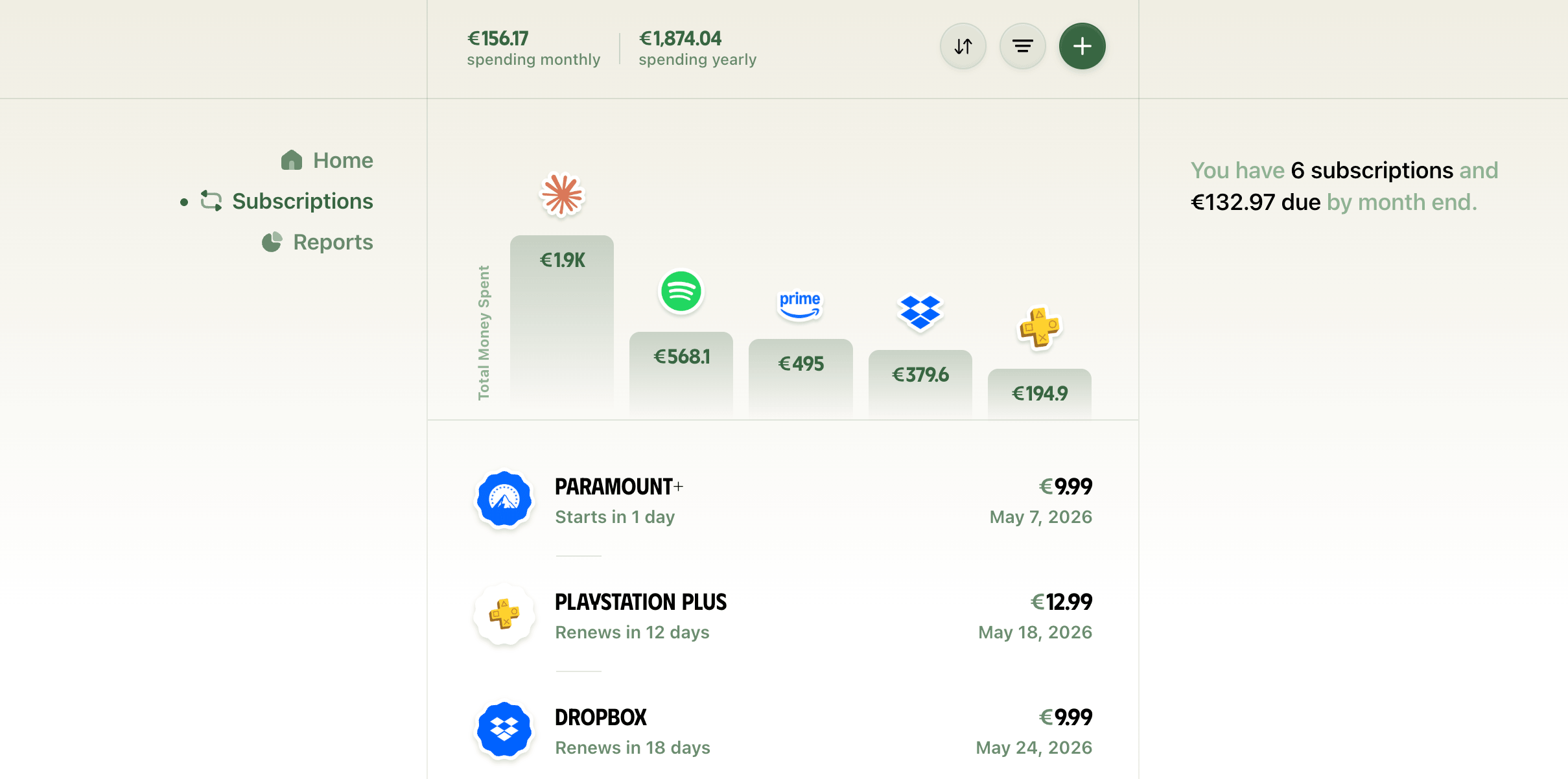
The Subscriptions page gives you crucial information about your subscriptions, such as how much you're spending in a month and a year, what are the subscriptions you've spent the most money on and the list of your subscriptions arranged based on their next billing date:
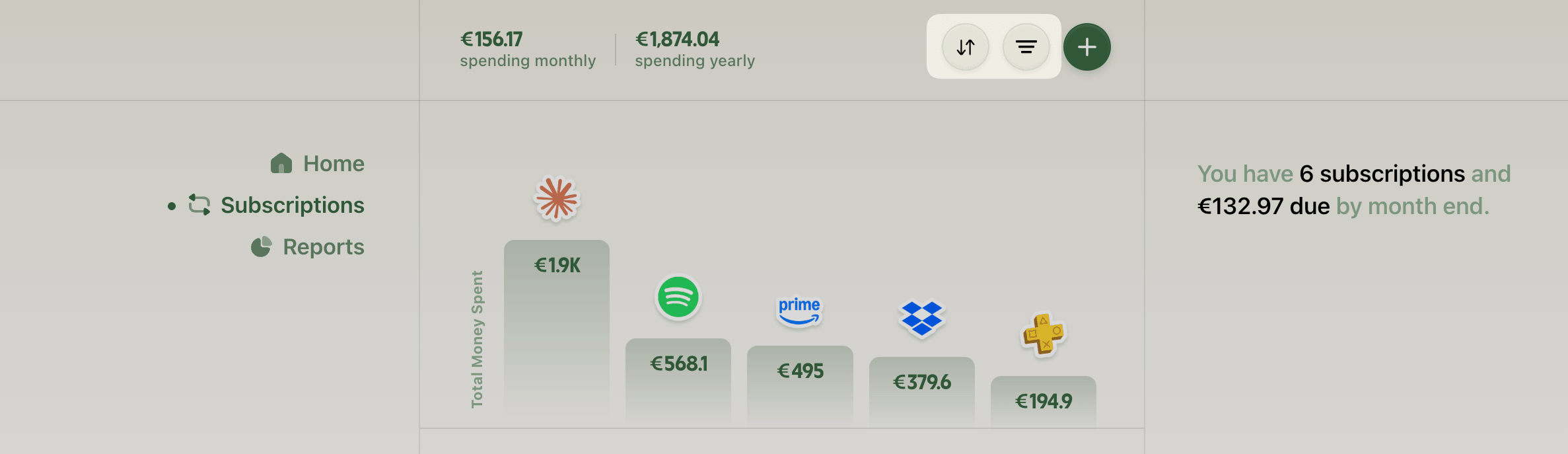
You can rearrange or filter the subscriptions list using the options beside the + button:
On this page, the top subscriptions chart is especially helpful because we often spend a significant amount of money on a subscription without realising it:
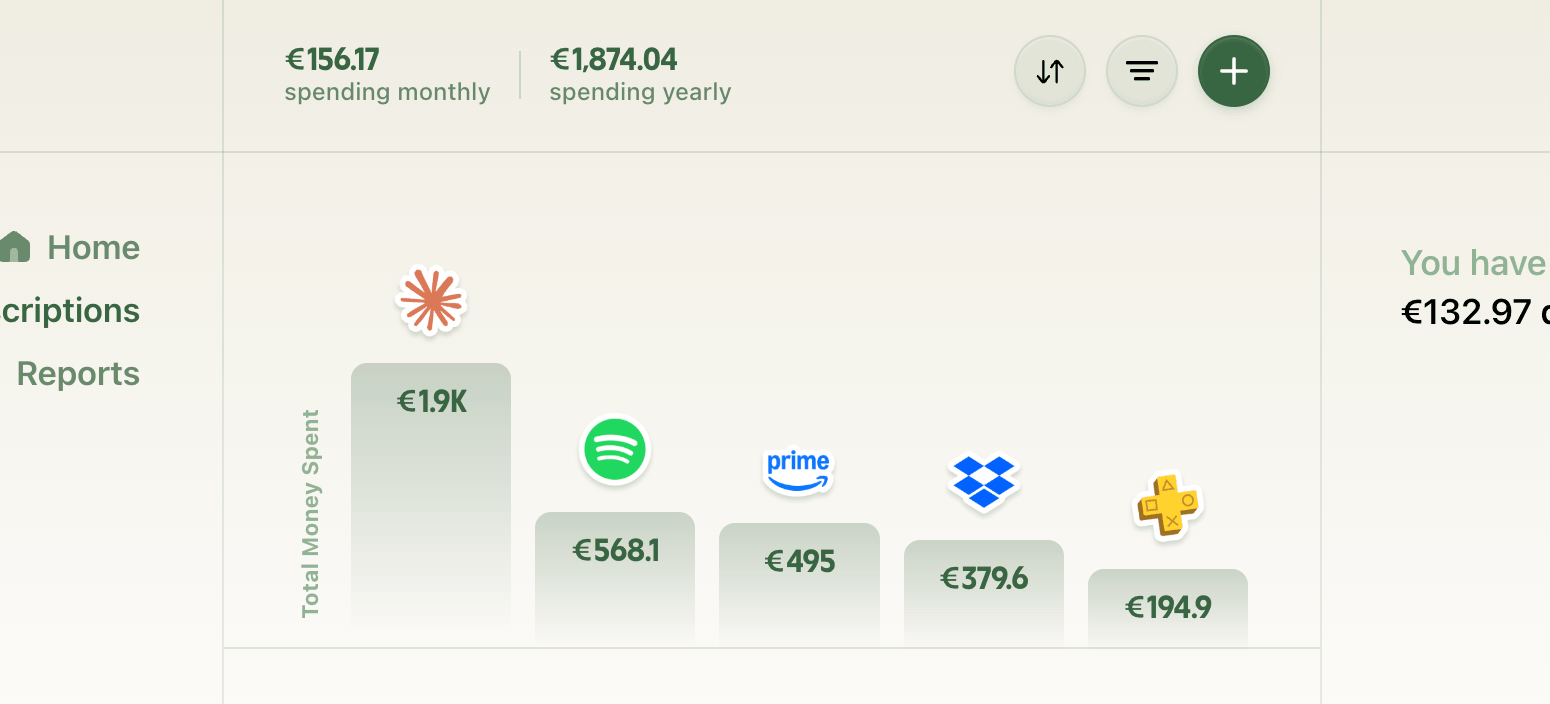
This section ranks your subscriptions by their lifetime total spend, thereby giving you scope to evaluate whether these highly paid subscriptions are worth keeping.
You can click on a subscription either on the chart or on the list to view it in details:
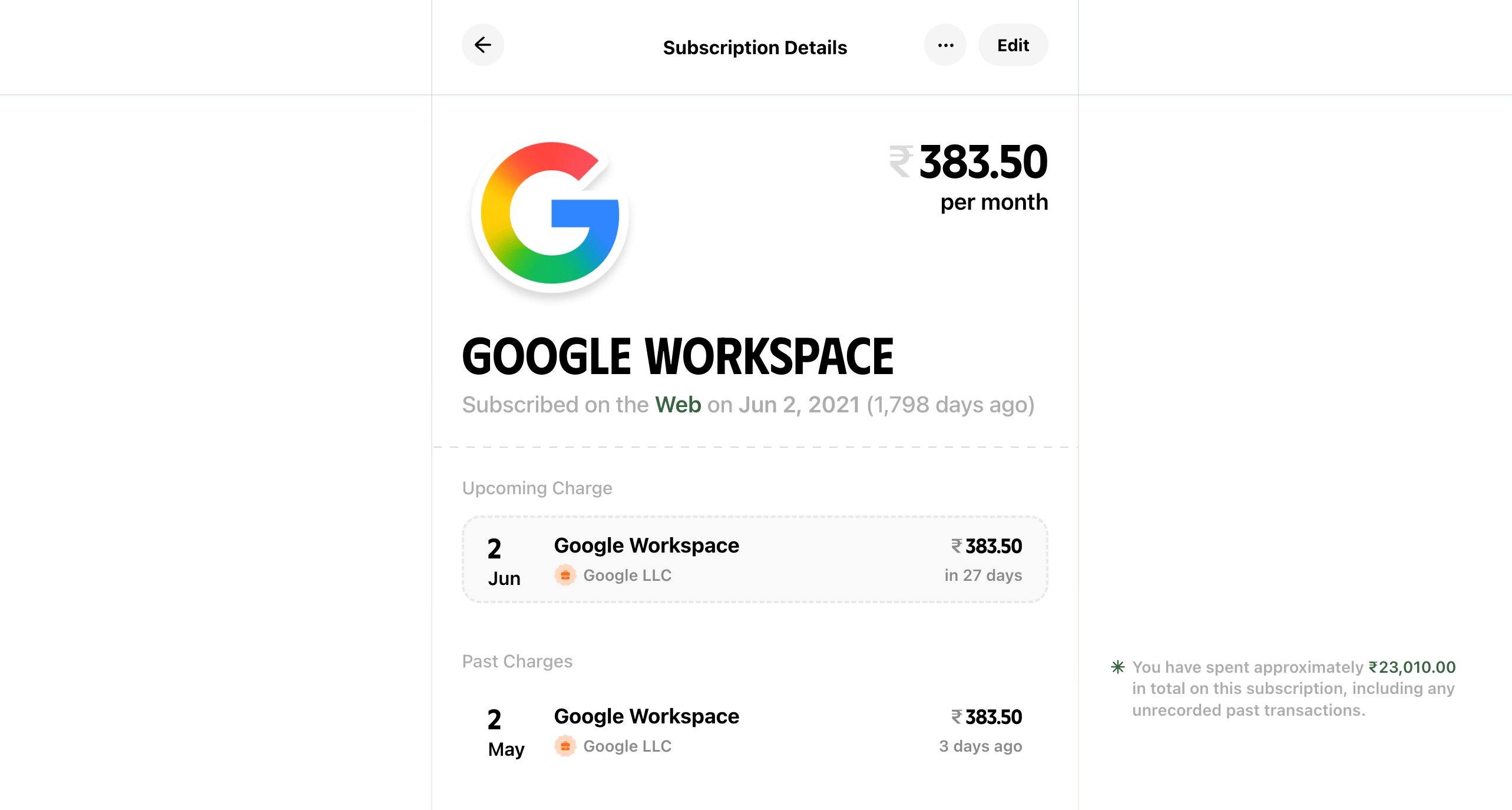
The subscription details page shows everything helpful about a subscription.
You can see when's the next bill is due, all past tracked charges and how much you've spent in total on this subscription.
The total spend amount is an approximation estimated from your entered start date and the subscription frequency.
Cancelling a subscription
Whenever cancellation information is available for one of your subscriptions, its source will be highlighted in green:
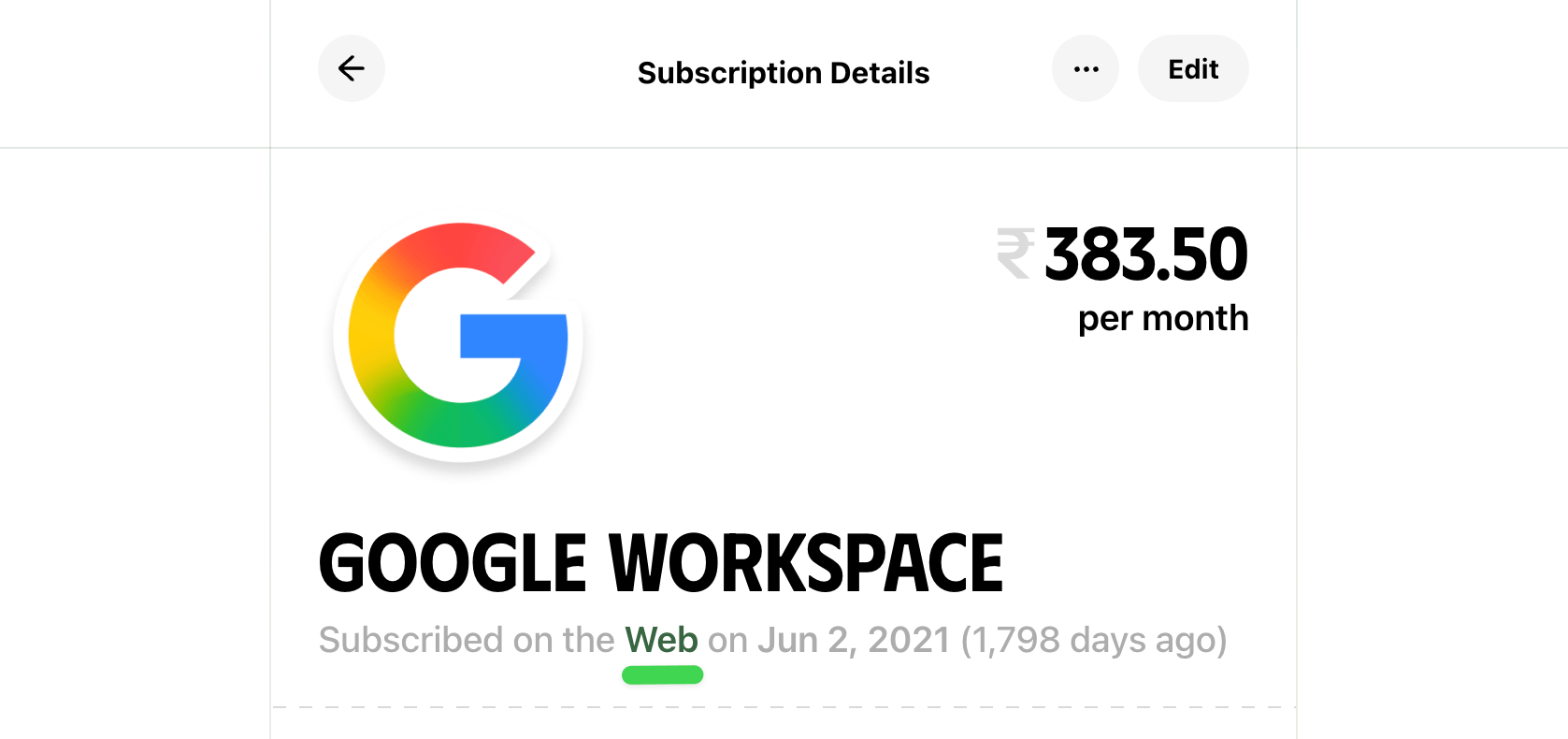
Hover over this source information to reveal a link to the subscription company's help page illustrating how to cancel this subscription:
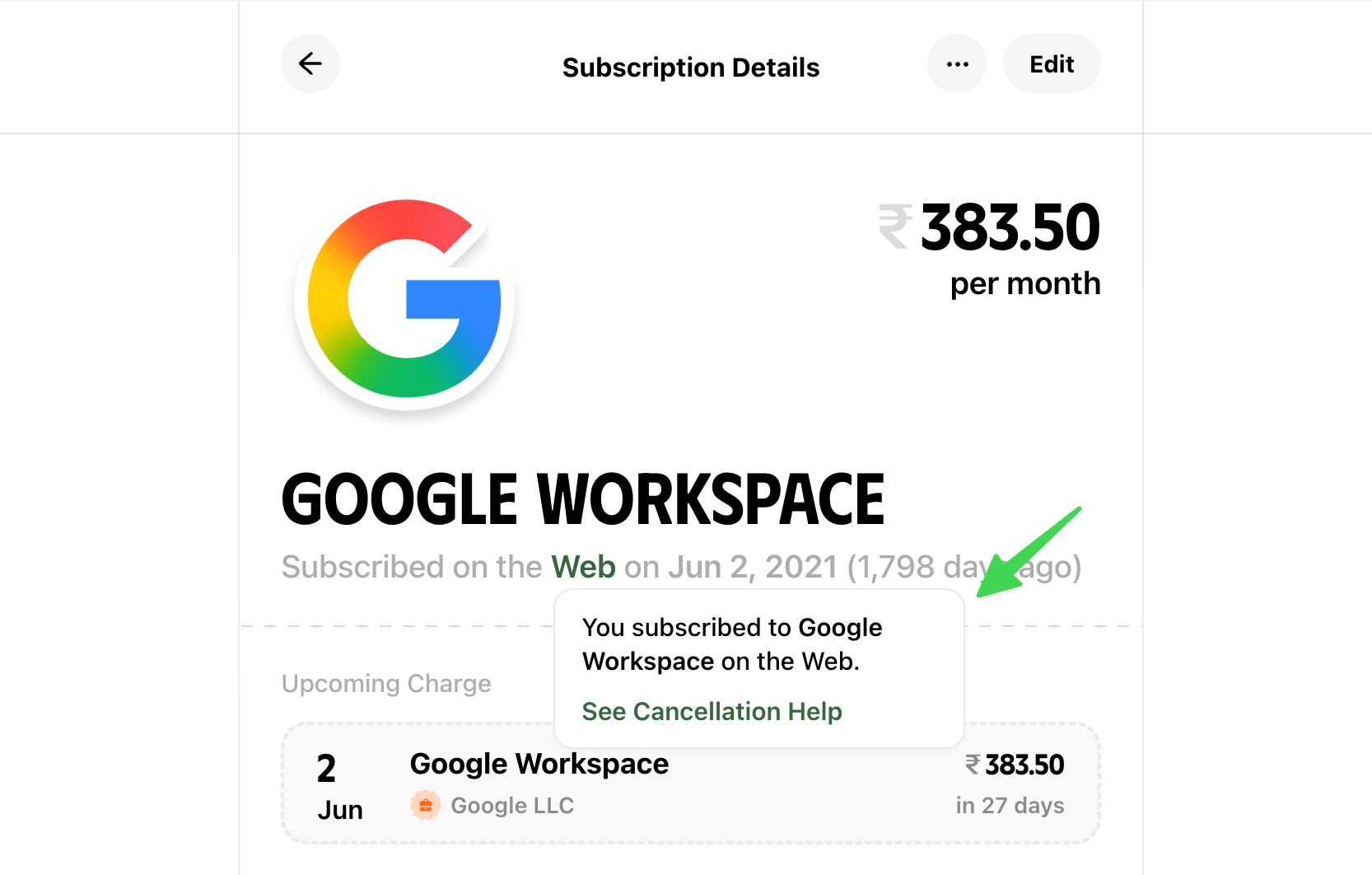
This can be helpful when the cancellation option for a subscription is hidden deep within settings, and the linked article can be a shortcut to that option.
Once you've cancelled a subscription on the company's website or another platform, such as App Store or Google Play Store, click the ••• option and choose Mark Cancelled:
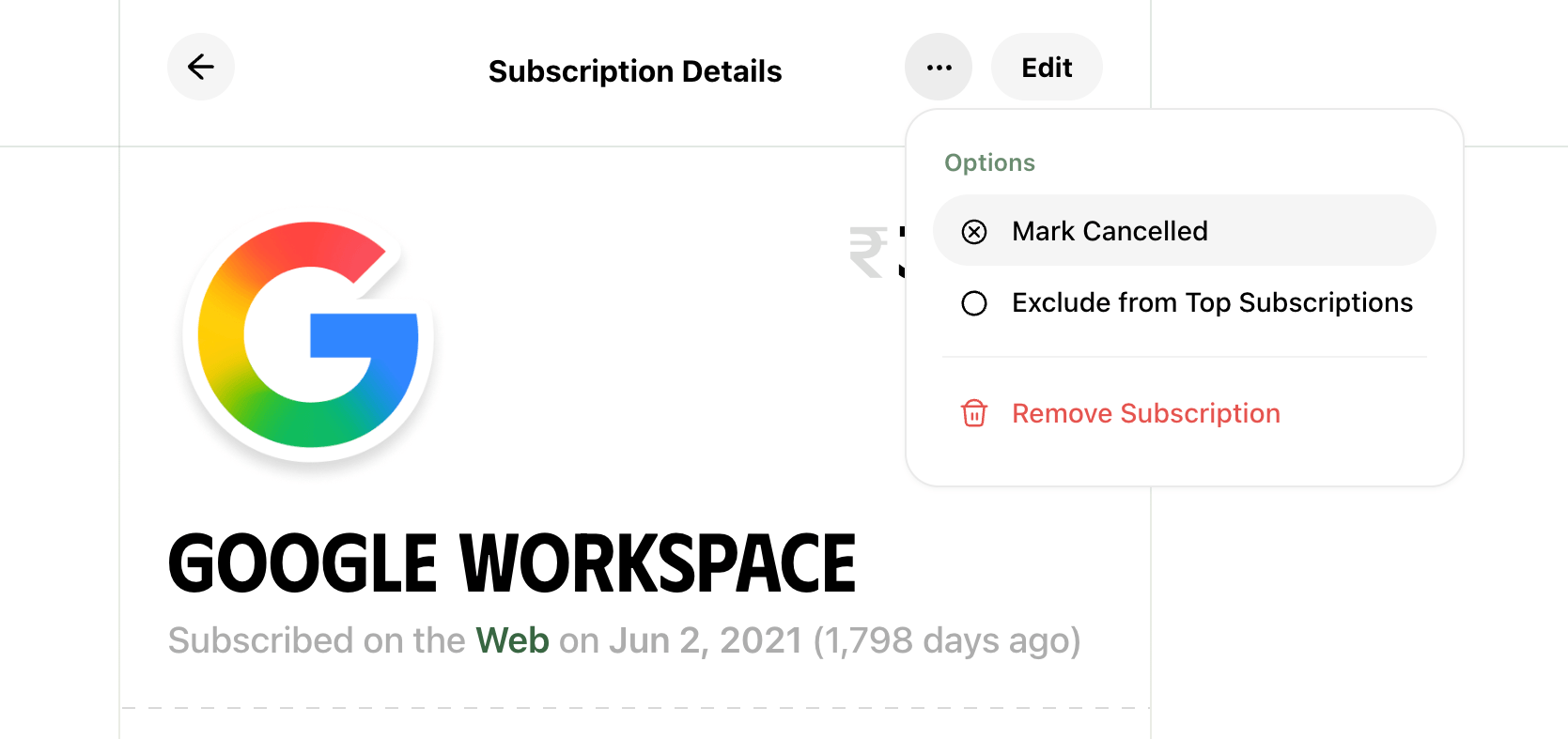
This will mark the subscription as expired or expiring depending on the cancellation time you've chosen at confirmation, and you'll not receive further renewal alerts for this subscription.
The subscription still stays in your list of tracked subscriptions under the Cancelled filter until you remove the subscription from the ••• menu.
Excluding a subscription from top
While the top subscriptions ranking is helpful in identifying your highest recurring spends, it can be noisy when the ranked subscriptions are indispensable.
For example, you might be spending hundreds of dollars on Google Workspace, but it's a critical service for your business and therefore can't be cancelled.
In such cases, it doesn't make sense to keep this subscription in the top subscriptions chart as it'll always show up in the chart pushing another potentially cancellable high-spend subscription out of the view.
You can avoid this by marking your indispensable subscriptions as Exclude from Top Subscriptions from the ••• menu in the subscription details page:
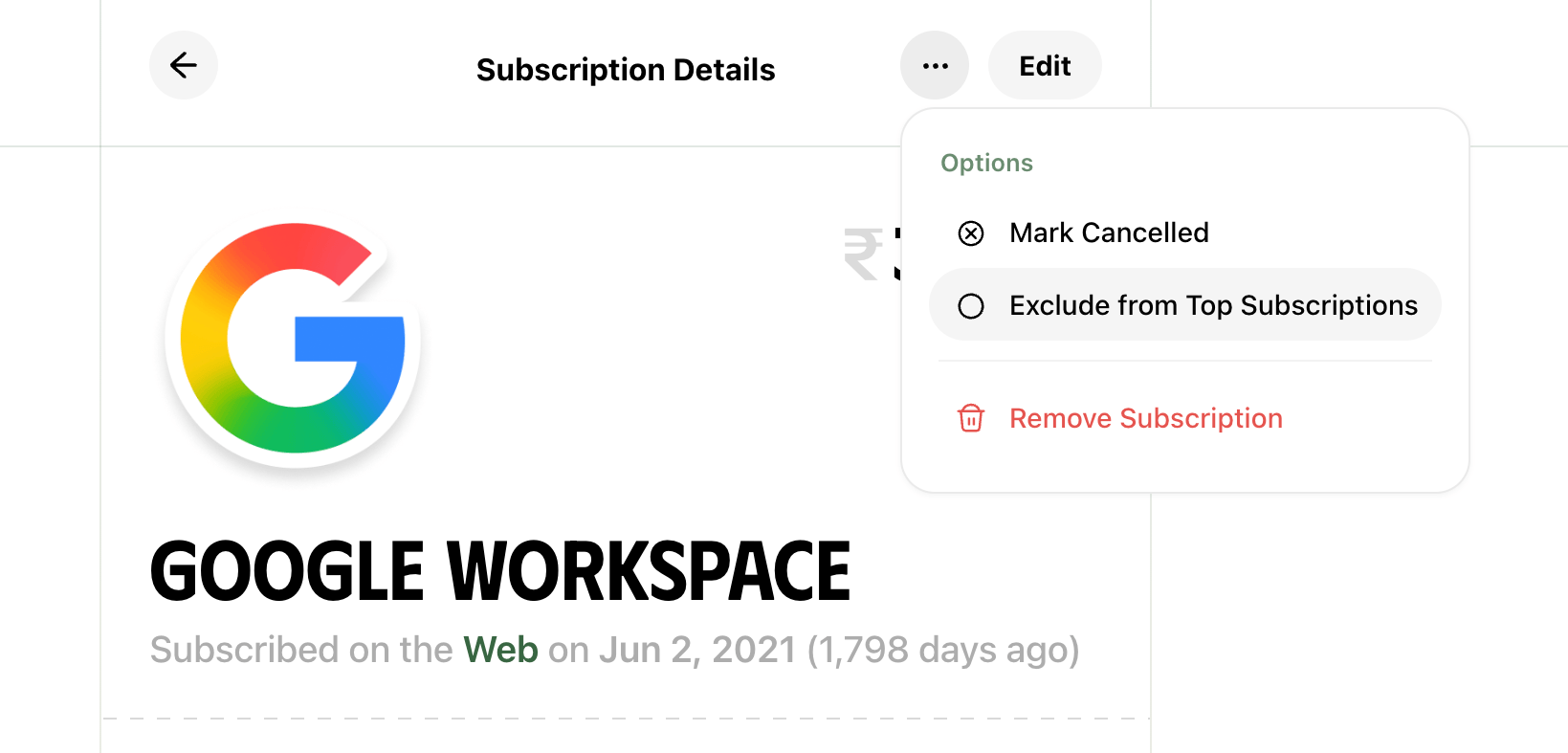
Now, this subscription will not be ranked in the top subscriptions chart making space for the next highest spend to surface under the spotlight.
Need more help?
Email your question or issue and we’ll get back to you shortly.
Send an email