

Managing transaction categories
Learn how to add and edit your transaction categories to match your expenses.
Categories group transactions together and help you understand your spending areas at a glance.
When you sign up, Ducat automatically creates a list of common categories, such as Groceries, Travel, etc., for you to start using right away.
Viewing existing categories
You can view your existing transaction categories under Settings → Categories → Browse:
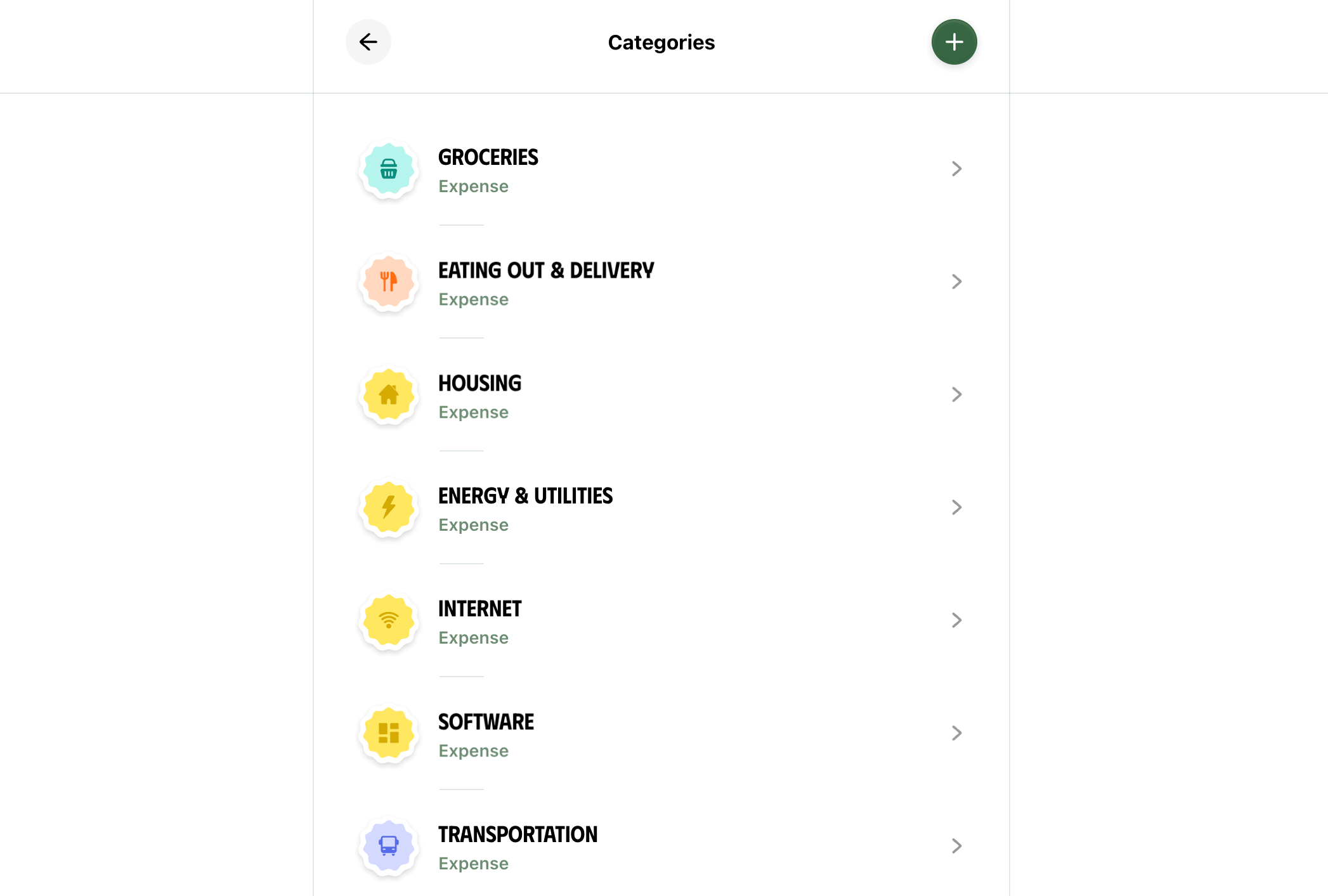
This list is not set in stone. You can edit any of the existing category names and add new ones to match your spending.
Note: When naming or renaming categories, use real-world, descriptive names wherever possible to help Ducat accurately tag future transactions in the correct category.
Add a new category
While on the categories list page, click the + button on top to open the new category page:
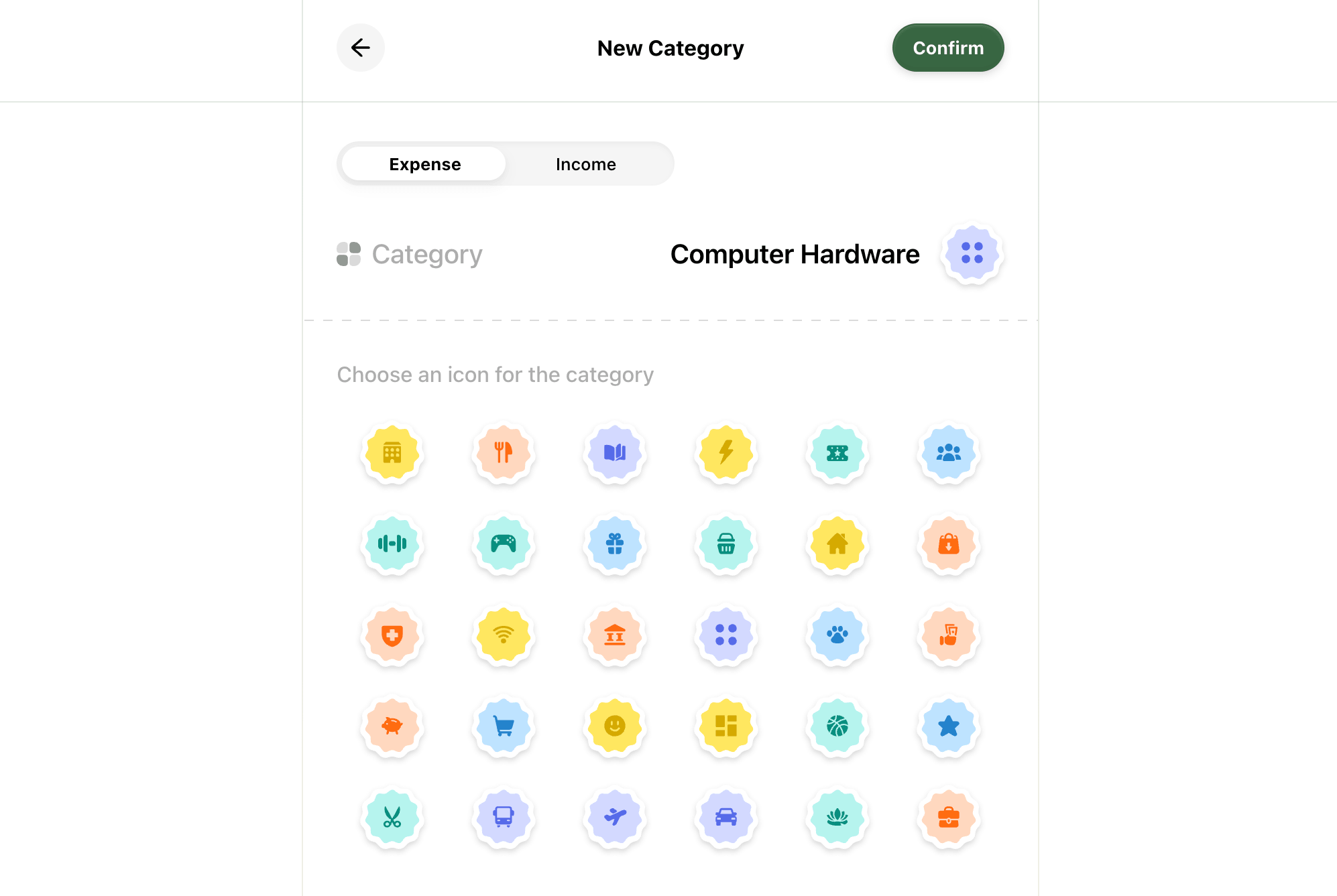
Give your category a meaningful name, choose an icon and the category transaction type (expense or income) and click Confirm to create the category.
Now, when you log new transactions, Ducat will match the transaction against your updated category list, including this new category, and tag it with the appropriate one.
Edit a category
Click on a category from the categories to open it for editing:
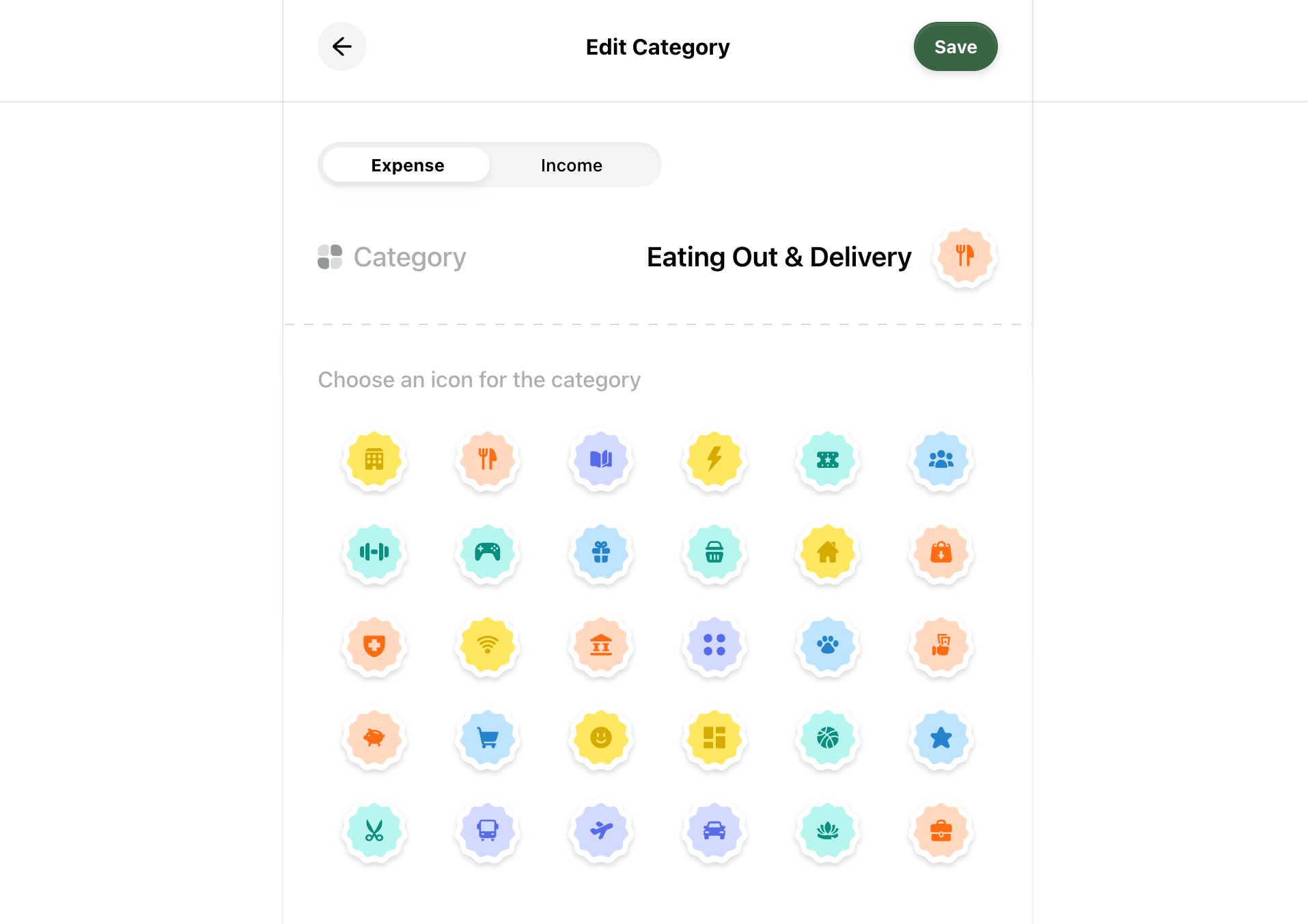
Update the category name, icon and anything else, and then click Save to update the category details.
As with new categories, Ducat will use the updated category information for any future transactions.
Need more help?
Email your question or issue and we’ll get back to you shortly.
Send an email