

Setting up Shortcuts
This guide will help you quickly log transactions via the Apple Shortcuts app.
While the Ducat Web app can be accessed on any device and platform, it can also integrate with other apps to help you set up workflows convenient for you.
Setting up a shortcut using the Apple Shortcuts app is such an integration that lets you log transactions without having to open the app.
Download the shortcut
There are two ready-to-use shortcuts that you can download and add to your Shortcuts library and get started in minutes:
- Log Transactions: Add transactions via a text prompt. Get the Shortcut.
- Log Transactions via Voice: Add transactions by dictating your spend or income. Get the Shortcut.
Once you've added one of the above shortcuts to your Shortcuts app library, you're ready to connect it to your Ducat account.
Get an integration key
Head over to Settings → Integrations, click the + button, and then choose Shortcuts to create a new Shortcuts integration key:

You can use the prefilled name for the integration or rename it to anything that helps you remember the workflow.
Click Create to create the integration and generate an integration key that you can use in the shortcut:
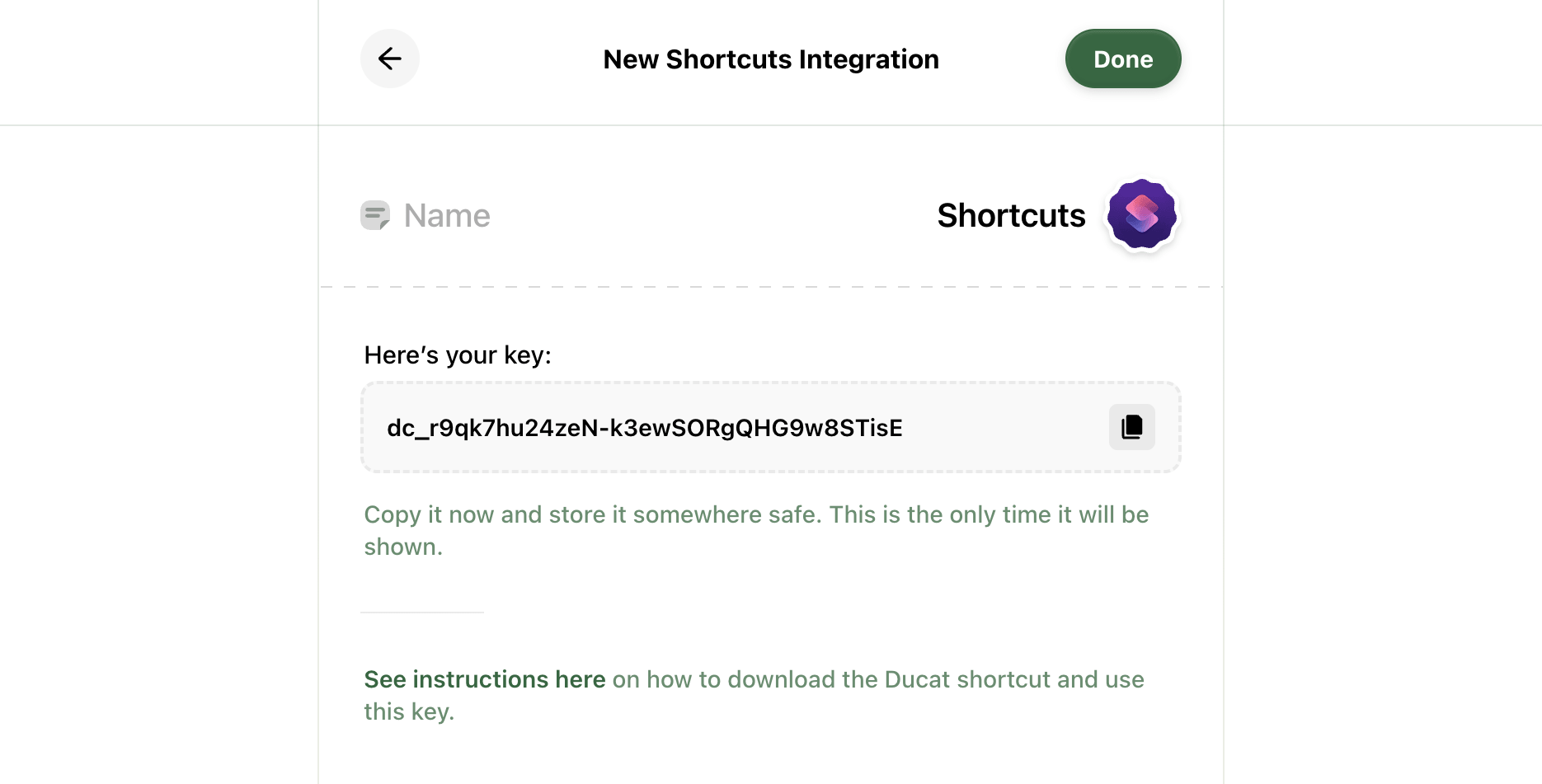
Note: Anyone with this key can log transactions to your Ducat account. Therefore, keep it safe and don't share it with anyone else.
Copy the generated key and click Done.
Preparing the shortcut
Open the shortcut you downloaded from the first section, and paste your generated integration key in the Text action:
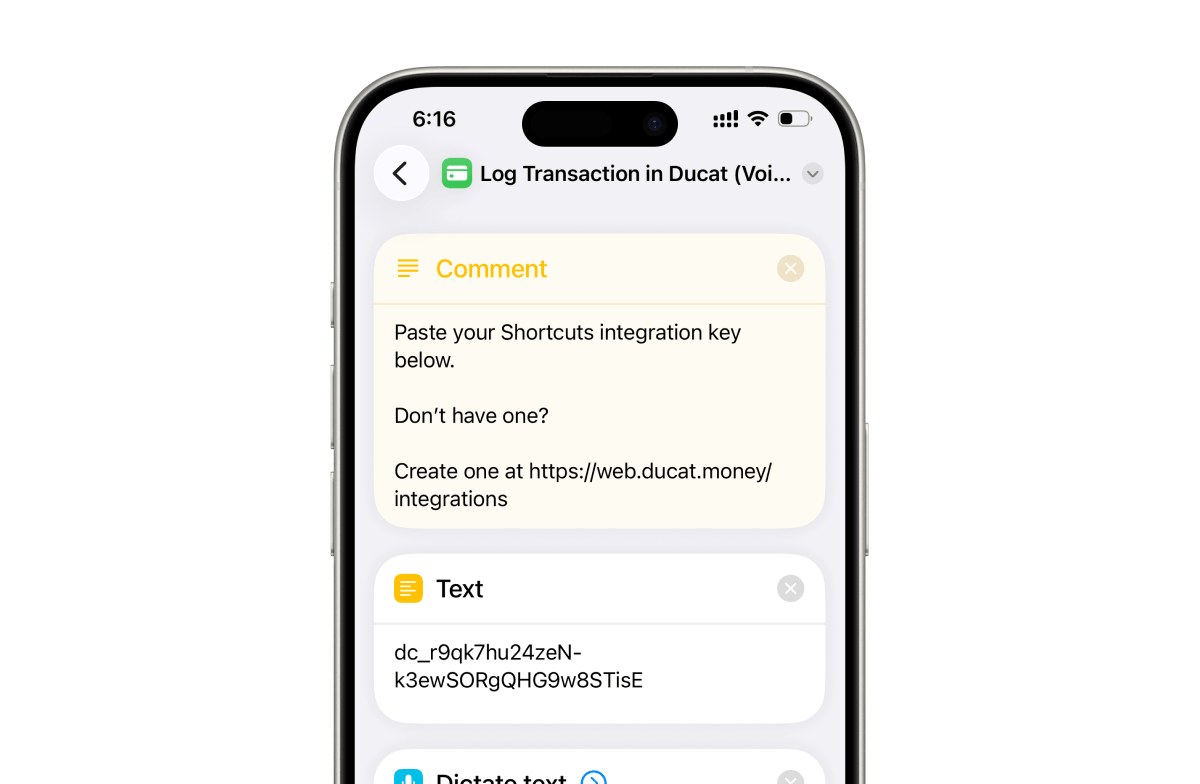
Navigate back to your Shortcuts library and your shortcut is ready to use.
Logging transactions
Run the shortcut anywhere on your iPhone or Mac, describe your transaction in the prompt and hit Done:
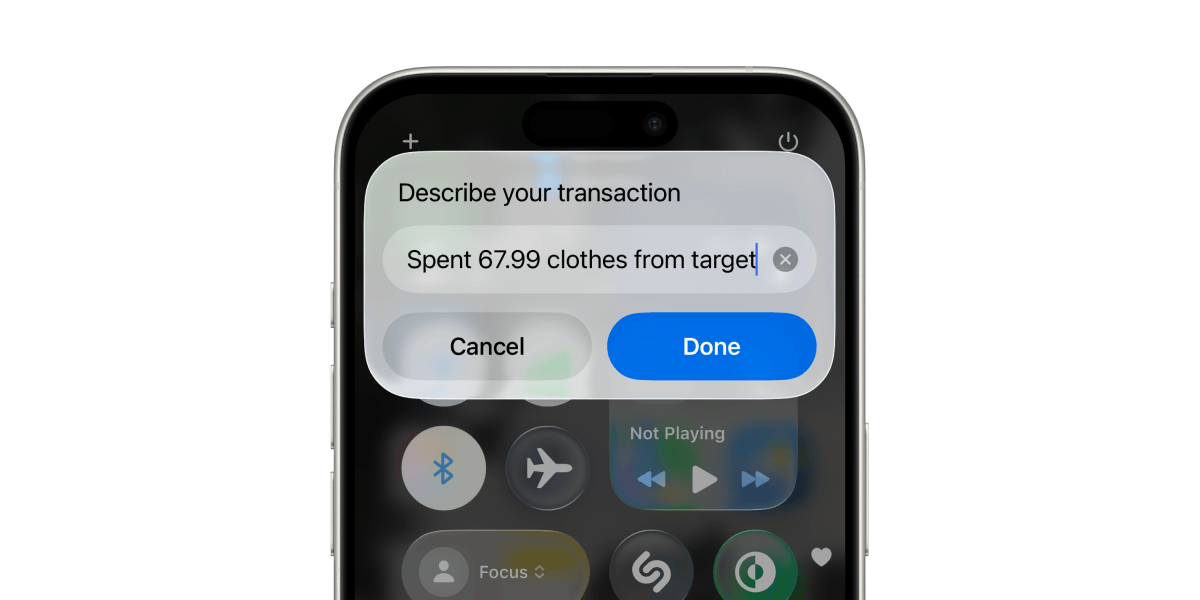
Tip: Add this shortcut to your phone's Control Centre or lock screen to quickly log transactions without having to open the Shortcuts app.
Need more help?
Email your question or issue and we’ll get back to you shortly.
Send an email