

Using the browser extension
This guide will help you view your spending totals on ecommerce sites using the official extension.
Ducat can integrate with your web browser and show your category-wise spending totals on supported ecommerce product pages.
This is helpful in curbing impulse purchases when you see your monthly spend in that product category under the Buy Now button.
Download the extension
The browser extension is currently available for all Chromium browsers, such as Google Chrome, Brave, Vivaldi, Edge and more.
Download the extension from the Chrome Web Store.
Get an integration key
Head over to Settings → Integrations, click the + button, and then choose Browser to create a new Browser integration key:

You can use the prefilled name for the integration or rename it to anything that helps you remember the connection.
Click Create to create the integration and generate an integration key that you can use to connect the browser extension to your account:
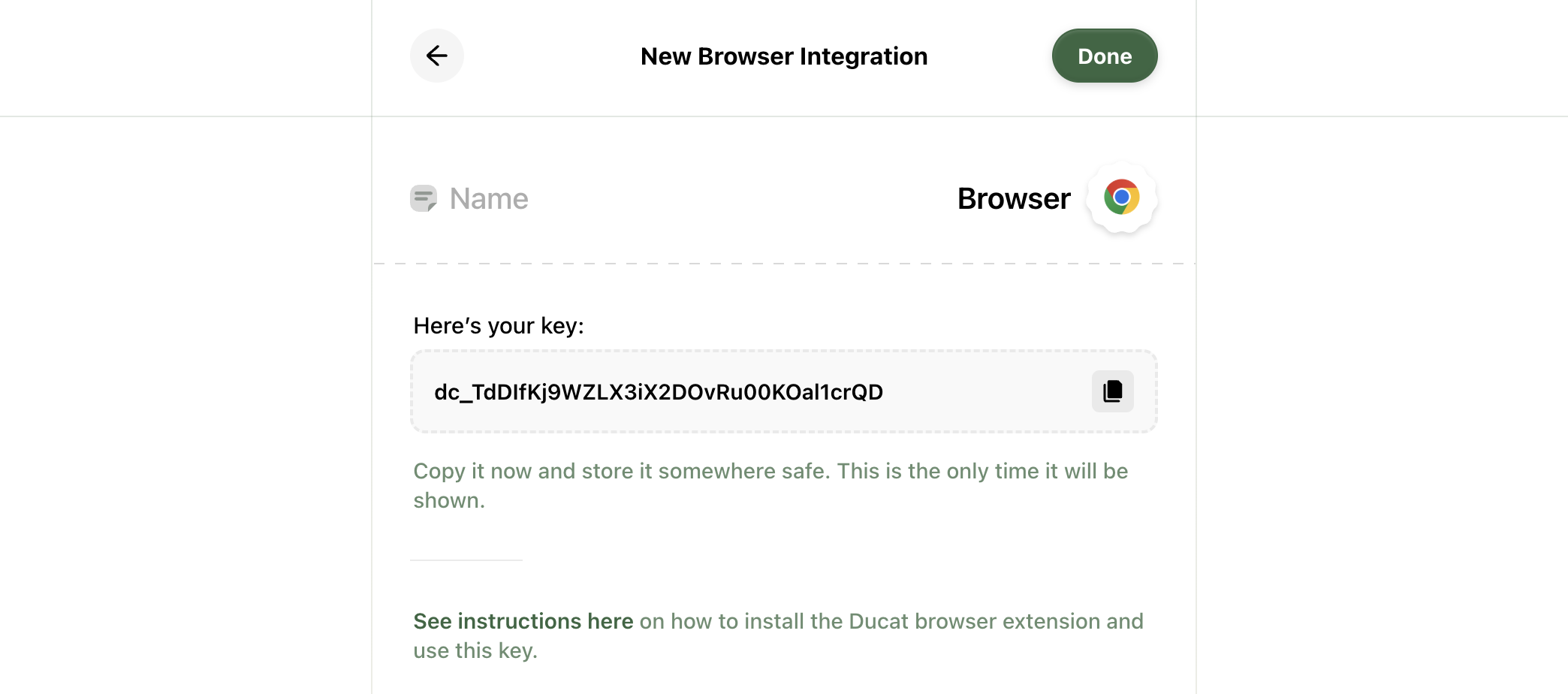
Note: Anyone with this key can view your spending totals from your Ducat account. Therefore, keep it safe and don't share it with anyone else.
Copy the generated key and click Done.
Configuring the extension
Upon installing the extension, it will ask you to input your integration key to connect to your Ducat account:
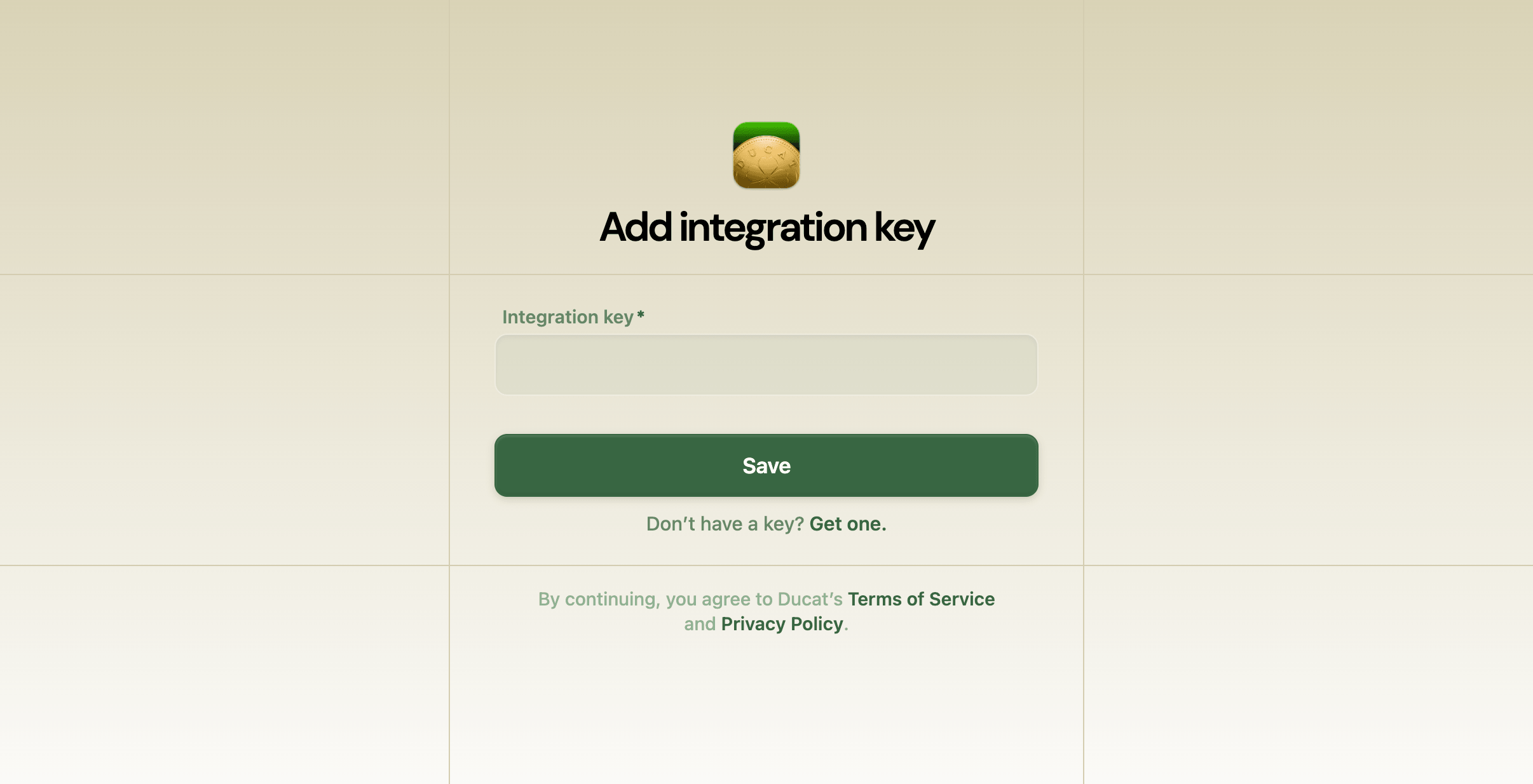
This is where you can paste the integration key you generated in the last step and click Continue to save your configuration.
Once saved, you'll start seeing your spending totals when you visit a supported ecommerce product page, such as Amazon:
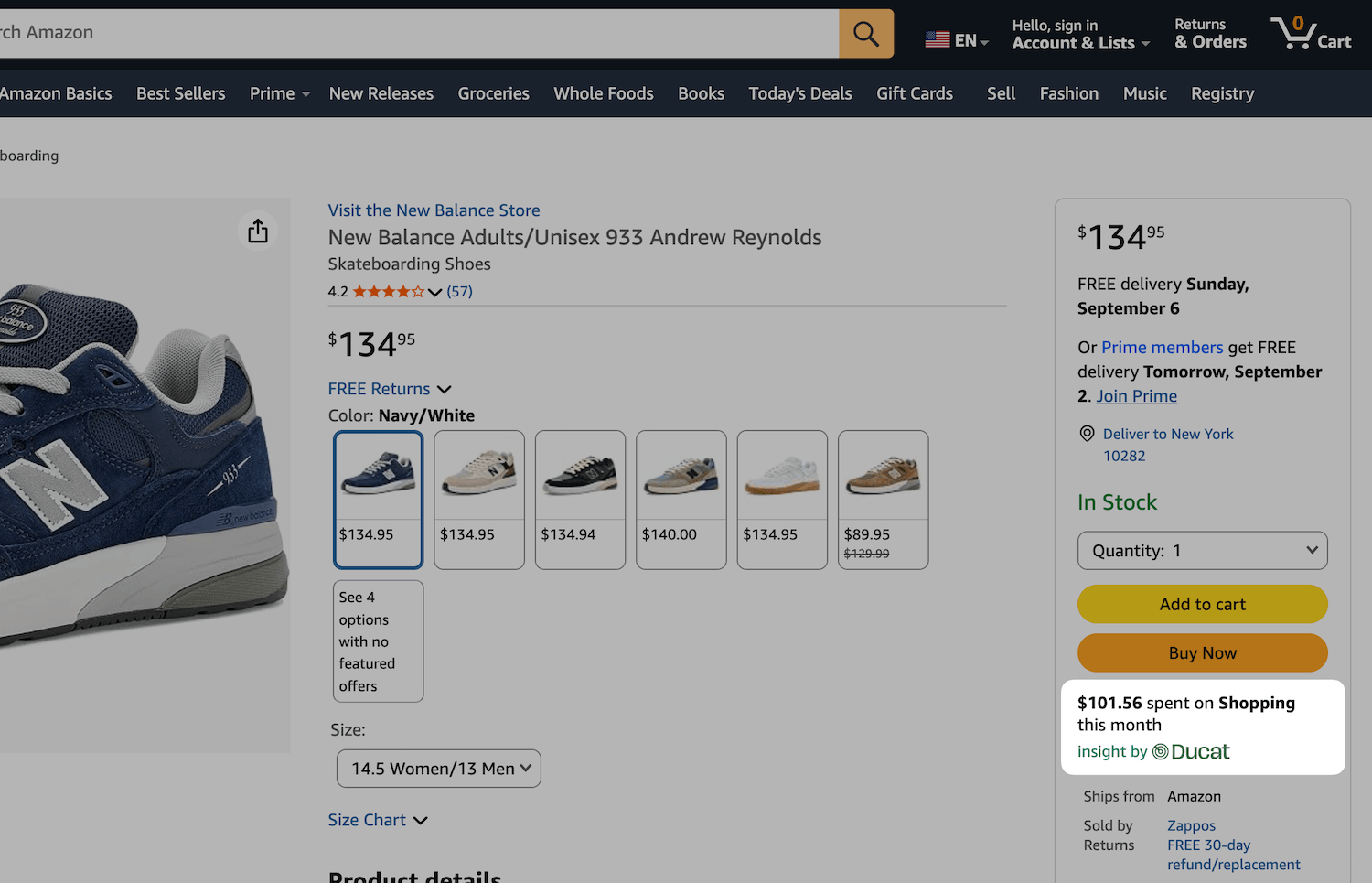
All Amazon storefronts are currently supported, and the extension tries to make the best match between the product category and your saved categories in Ducat to show your current month's spending.
Need more help?
Email your question or issue and we’ll get back to you shortly.
Send an email