

Adding transactions
Learn the different ways you can log transactions into your account.
Ducat supports adding new transactions in natural language.
This means you can type phrases like “spent 7.85 on coffee at costa coffee” and the app will format and categorise your expense automatically:

Example prompts
While a descriptive prompt helps the AI model working behind the scenes to format and categorise your transaction accurately, shorthand prompts work well, too.
Using keywords as a prompt
Instead of describing your transaction in complete sentences, you can use keywords that indicate what the spend was for, the amount and the place, and Ducat will pick the relevant details from your prompt.
Example: “9.67 coffee and bagel starbucks”
Using shorthand notations
You can make your prompts shorter using regular short notations for amounts, such as “1.45k”, “2 grand”, “3.32 lakh”, etc., instead of typing a large amount.
Throw in any well-used casual notations, and Ducat will accurately understand the transaction amount.
Example: “2.19k macbook pro apple store”
Adding income transactions
Simply mention words like “received”, “salary”, “business income”, etc., in your prompt, and Ducat will automatically mark the transaction as income.
Example: “received 783.89 for business sales from stripe”
Including transaction date or time
By default, Ducat adds all transactions with the current date and time at the time of input.
You can change this by mentioning a date or time in your prompt in well-known formats, such as, “3rd march”, “yesterday afternoon”, “last monday 5:18pm”, etc.
Example: “67.99 on jacket from h&m yesterday evening”
Add multiple transactions in one shot
If you have two or more transactions that you want to log at once, you can describe them one after the other, connected via an “and” conjunction.
Ducat will identify and log every transaction in your prompt in one shot.
Example: “spent 347 online course udemy and 198.75 new balance shoes amazon”
Split transactions from a single prompt
Occasionally, you might want to log a single transaction as two different spends to categorise them better.
For example, you can split a single $85 spend at Costco into Groceries and Pets to track your spending more accurately.
Ducat can perform the mathematical calculation to split your transaction.
Example: “spent 85 in total at costco, 32 for pet food and rest for groceries”
Auto-convert foreign currencies
Mention a foreign currency in your prompt, and Ducat will identify it and automatically convert the final transaction amount in your account currency.
This is helpful when you're travelling or buying things online.
Example: “spent 1200 jpy for okonomiyaki at nishiki market”
Ducat can understand most natural language phrases, and the above prompts are just examples. Feel free to describe the way you prefer.
Choosing an entry mode
Ducat allows logging transactions in two modes:
- Quick: Formats and adds a transaction without your intervention.
- Reviewed: Formats and displays the transaction details for you to review, make any necessary changes and save.
The default mode is the Quick entry mode, and it will be convenient for most people.
However, if you've noticed Ducat is making mistakes in understanding your transactions, you can switch the entry mode to Reviewed from app settings:
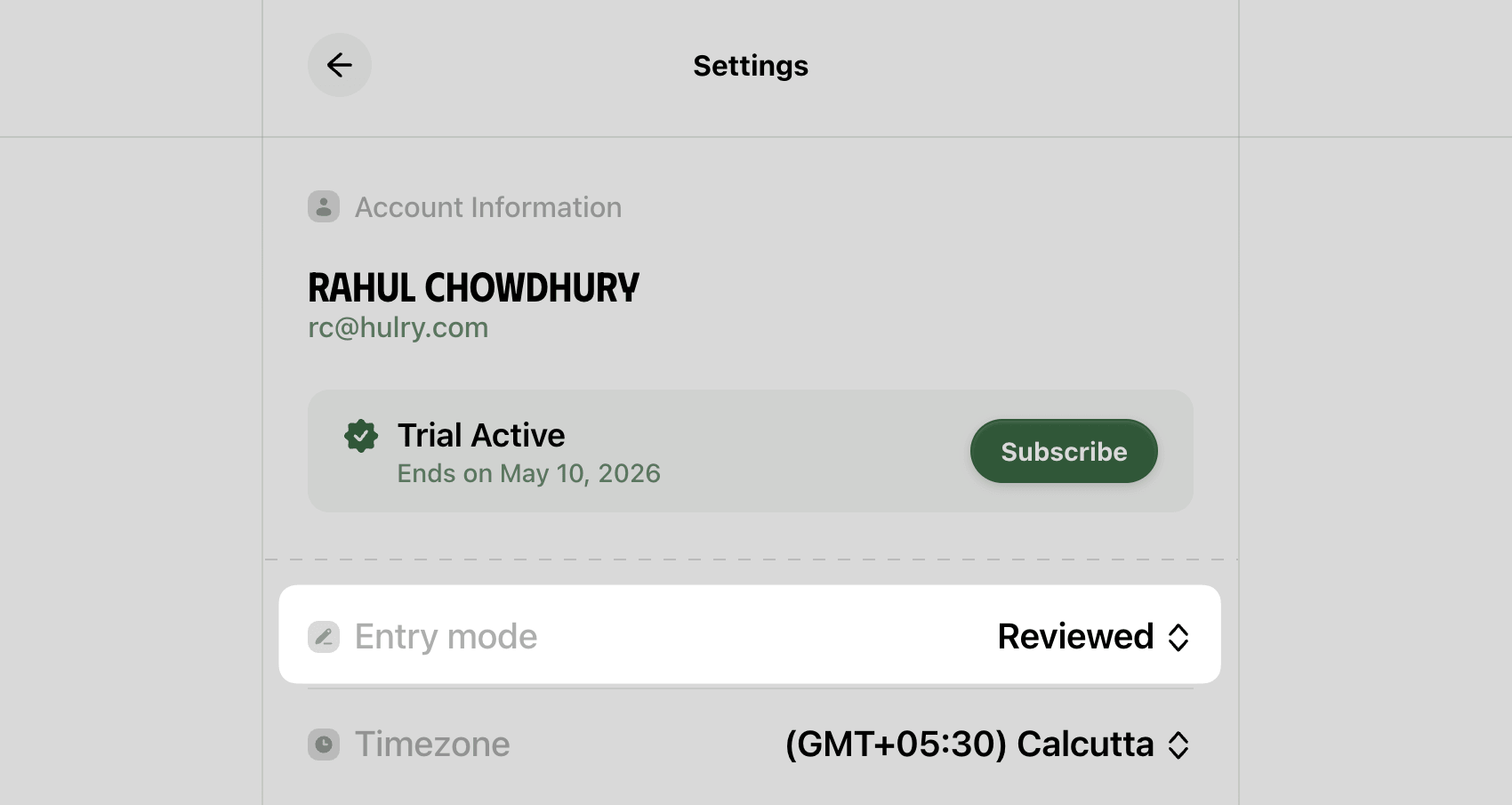
With the entry mode set as Reviewed, Ducat will always show one or more identified transactions to you for review and edit before logging them into your account.
Need more help?
Email your question or issue and we’ll get back to you shortly.
Send an email